Job Alerts Usability
Create job failure alerts and assign them to Groups so that the appropriate Users are notified when monitored jobs fail.
Navigating to Alerts
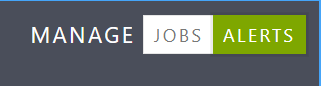
In the Admin menu, click Job Management and then use the toggle on the top right to switch to the Alerts section and view existing alerts.
Adding an Alert
Click Add and enter necessary details:
Assigning and Removing Groups to an Alert
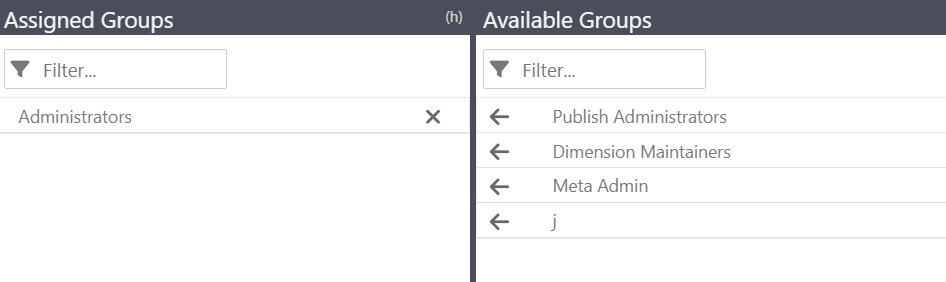
To Assign: First select an alert from the list, and then in the Available Groups panel, click the left arrow next to the Group name to add it to the alert
To Remove: Click the X button next to a Group name in the Assigned Groups panel to remove it.
Editing an Alert
Click the Edit button (pencil icon) to update the alert name, description, or linked jobs.

Viewing Alert History
Click the History button to see notification delivery details.

Deleting an Alert
Select the alert you want to delete, click the Delete button, then confirm.
Filtering Alerts
Use the Filter alerts search box to find alerts by name or description.
Viewing Linked Alerts
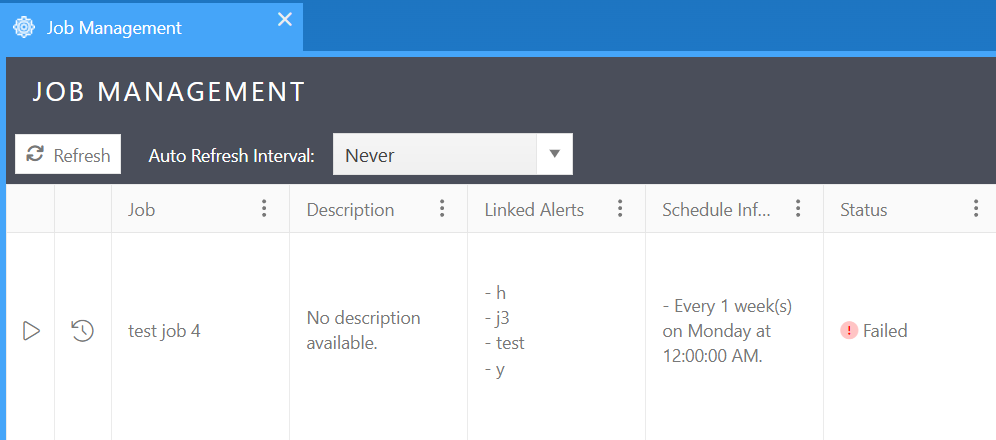
In the Jobs tab of Job Management, the Linked Alerts column shows which alerts are assigned to each job.