Setting Up Job Alerts
This guide helps you set up job failure alerts so Users get notified via email whenever a monitored SQL Server Agent job fails. Once configured, CALUMO will automatically send failure notifications to the appropriate Users based on the Alert rules you’ve created.
Follow either the manual steps or SQL script alternative (if available) for each step.
1. Enable OLE Automation Procedures
Manual Setup
- Open SQL Server Management Studio.
- Connect to your SQL Server instance.
- In the Object Explorer, right-click on the server and select Facets.
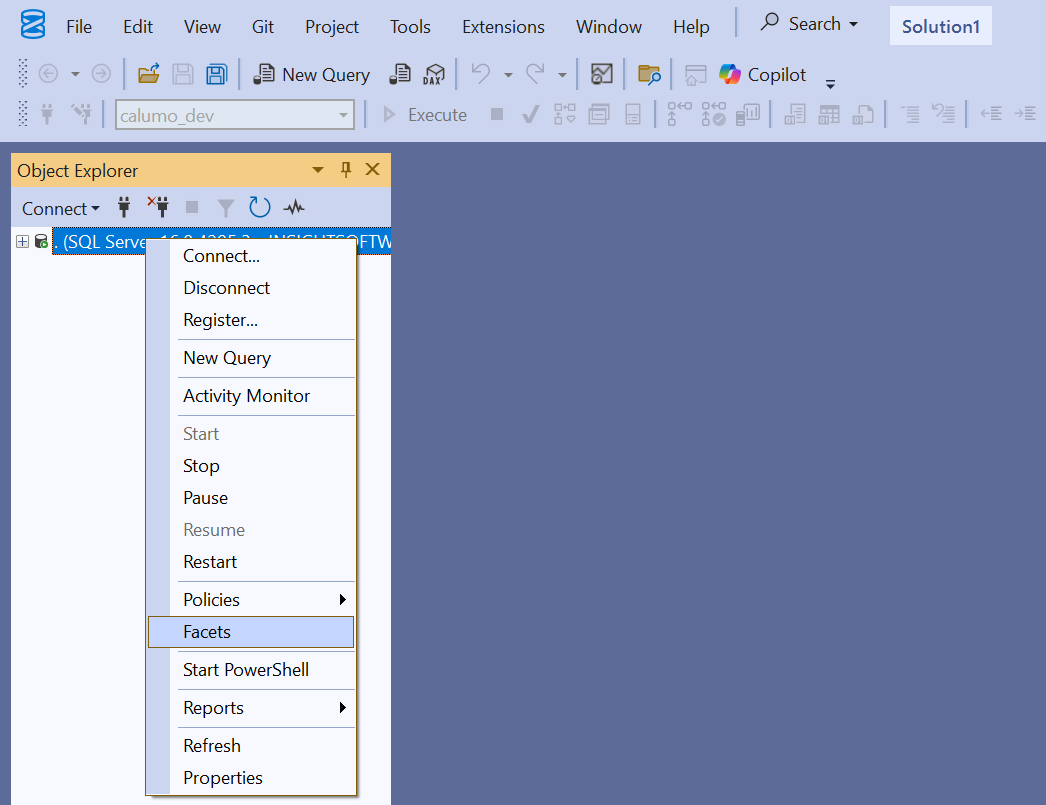
- In the View Facets dialog, find OleAutomationEnabled in the list.
- Change its value from
FalsetoTrue.
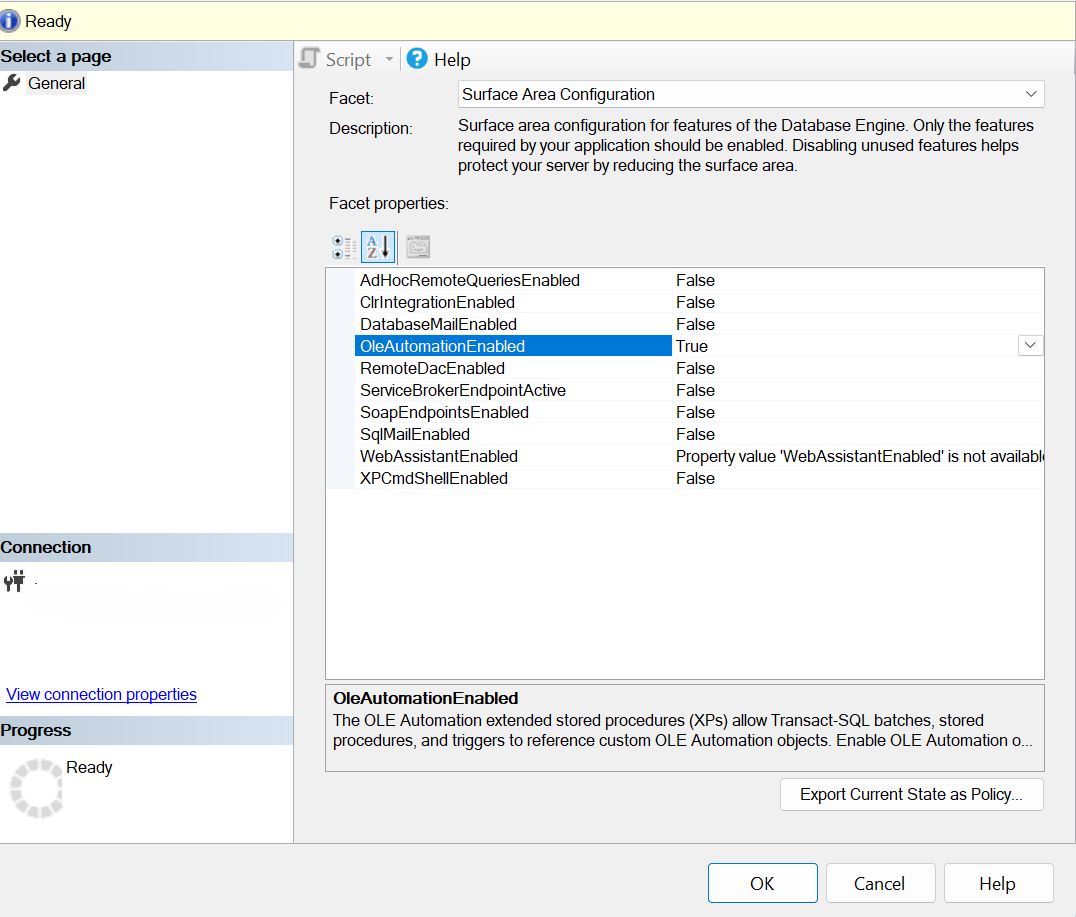
- Click OK to apply the changes.
SQL Script Alternative
Run this script on the SQL Server instance:
EXEC sp_configure 'show advanced options', 1;
RECONFIGURE;
GO

EXEC sp_configure 'Ole Automation Procedures', 1;
RECONFIGURE;
GO
2. Configure the Webhook URL and Tenant Name
- Open SQL Server Management Studio.
- Connect to your CALUMO application database or master (e.g.
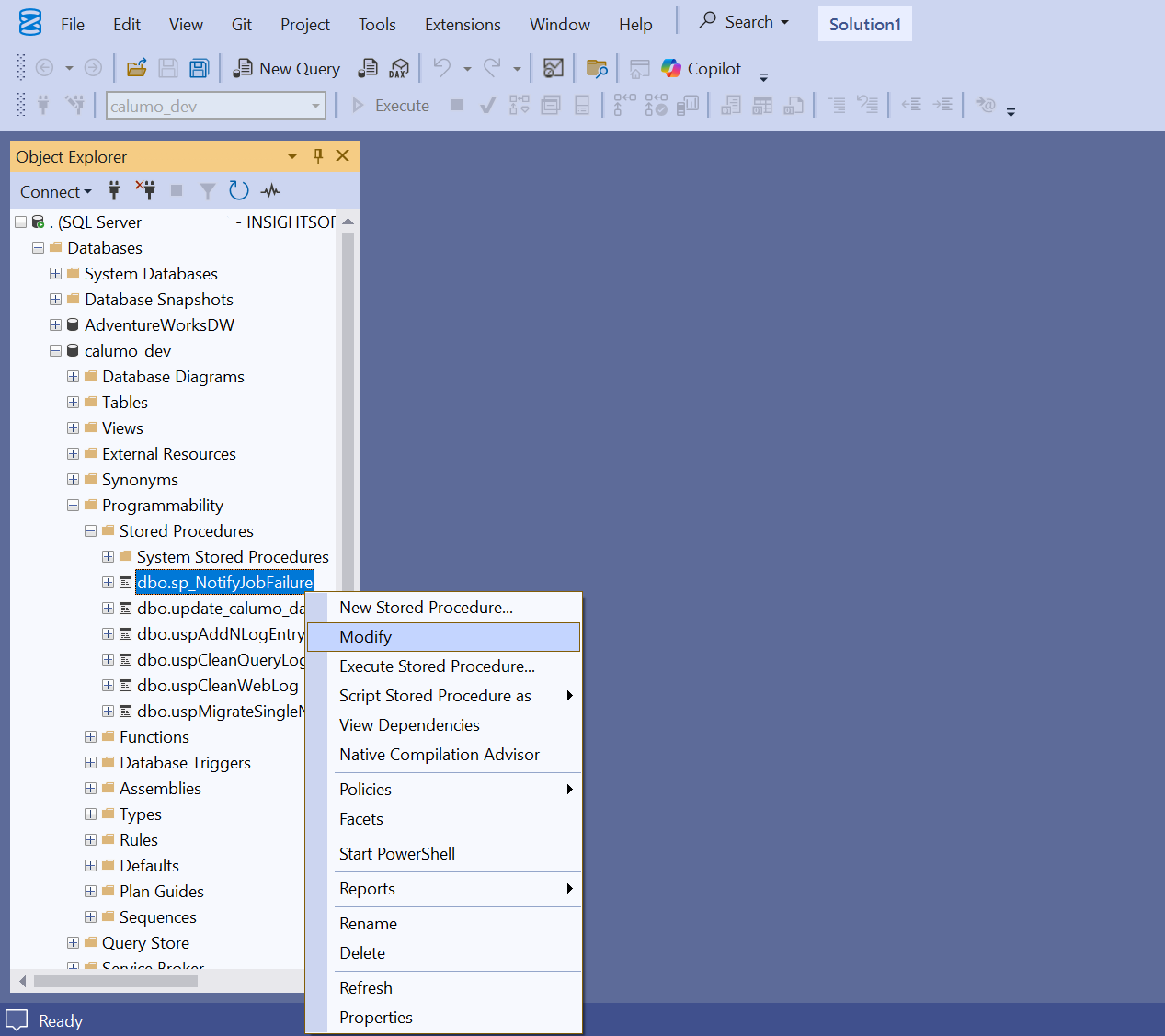
calumo_dev). - In the Object Explorer, go to Programmability > Stored Procedures.
- Find
dbo.sp_NotifyJobFailure, right-click it, and select Modify.
-
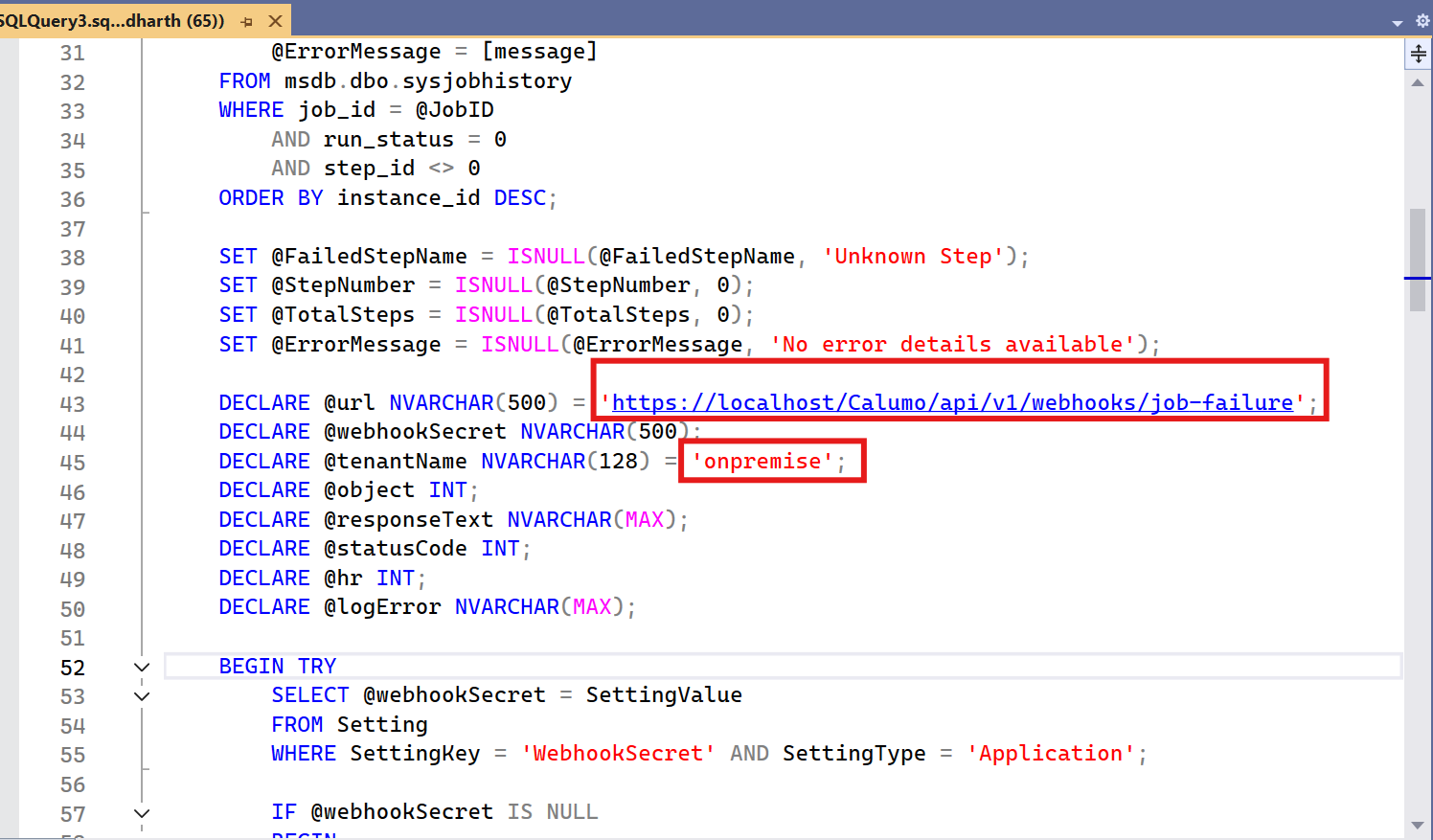
The stored procedure code opens in the query editor. Locate line 43 with the
@urlvariable:ReplaceDECLARE @url NVARCHAR(500) = 'https://localhost/Calumo/api/v1/webhooks/job-failure';localhostwith your CALUMO server address:DECLARE @url NVARCHAR(500) = 'https://<your-server>/Calumo/api/v1/webhooks/job-failure'; -
On line 45, locate the
@tenantNamevariable and update it to match your tenant:Change to:DECLARE @tenantName NVARCHAR(128) = 'onpremise';DECLARE @tenantName NVARCHAR(128) = '<your-tenant-name>';
- Click the Execute button (or press F5) to execute the modified stored procedure and apply the changes.
3. Add the Notification Job Step
Note: Add this notification step only to jobs for which you want to receive failure alerts.
Manual Setup
- Open SQL Server Agent > Jobs in Object Explorer.
- Right-click the target job and select Properties.
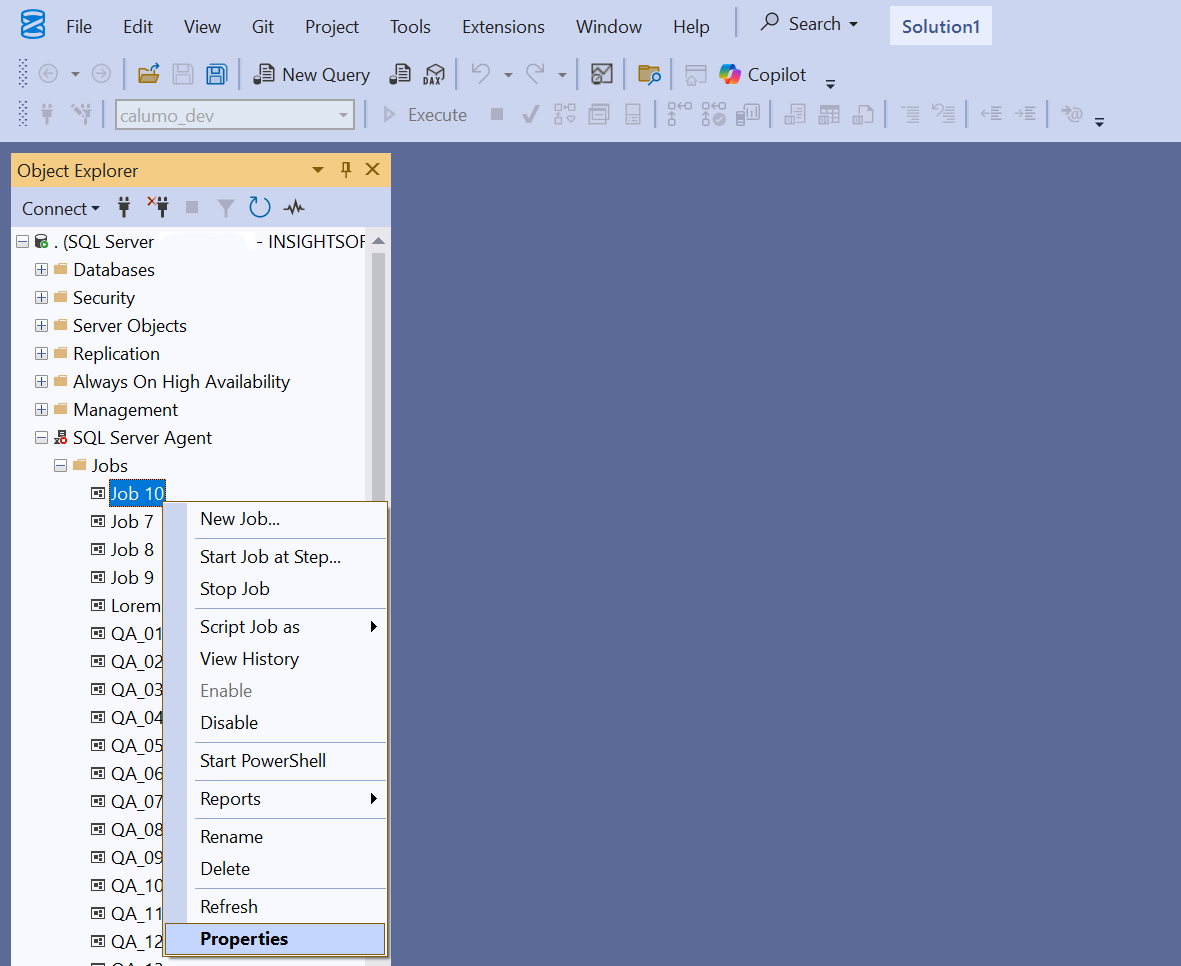
- Go to the Steps tab on the left and Click New… on the bottom to create a new step and configure it:
- Step name:
Notify CALUMO on Failure. - Type: Transact-SQL script (T-SQL).
- Database: CALUMO application database (e.g.
calumo_dev). - Command:
EXEC <appdb>.dbo.sp_NotifyJobFailure @JobIDHex = '$(ESCAPE_NONE(JOBID))', @JobName = '$(ESCAPE_SQUOTE(JOBNAME))';
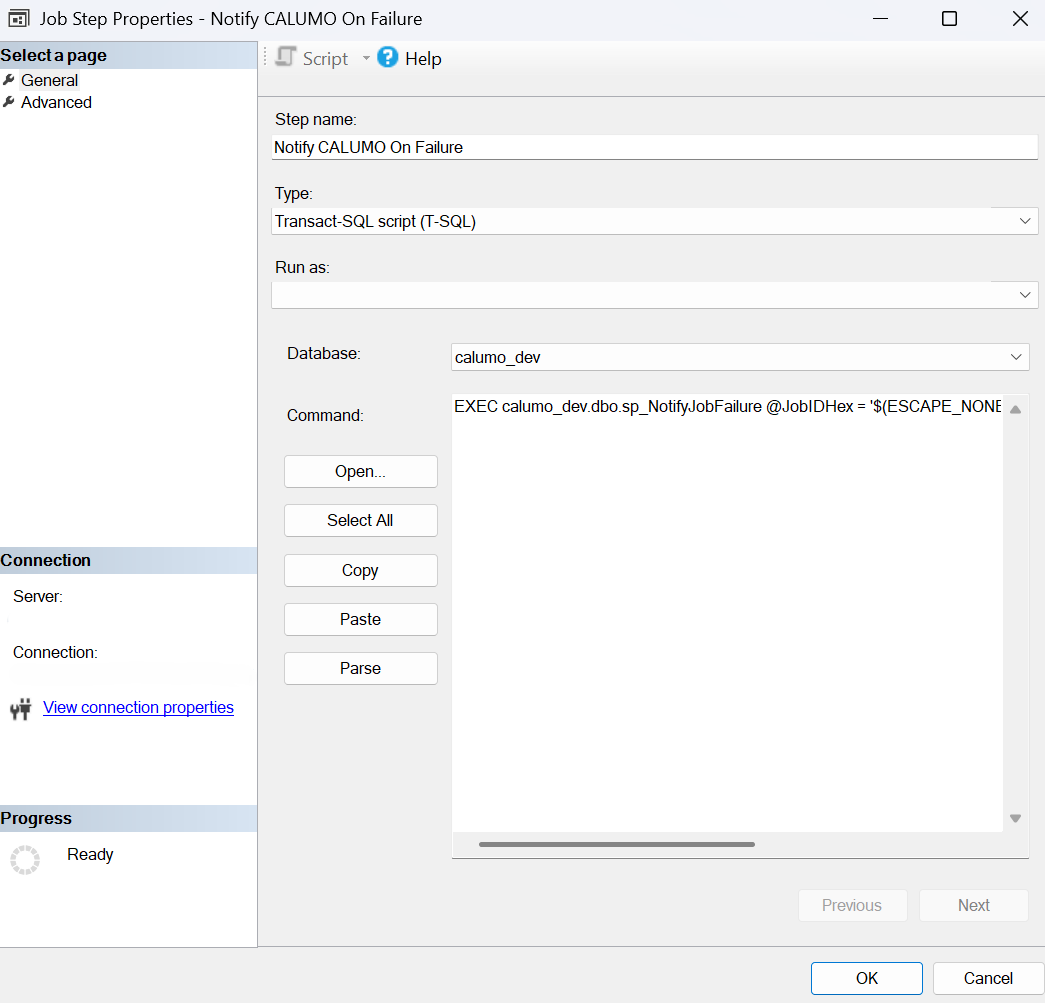
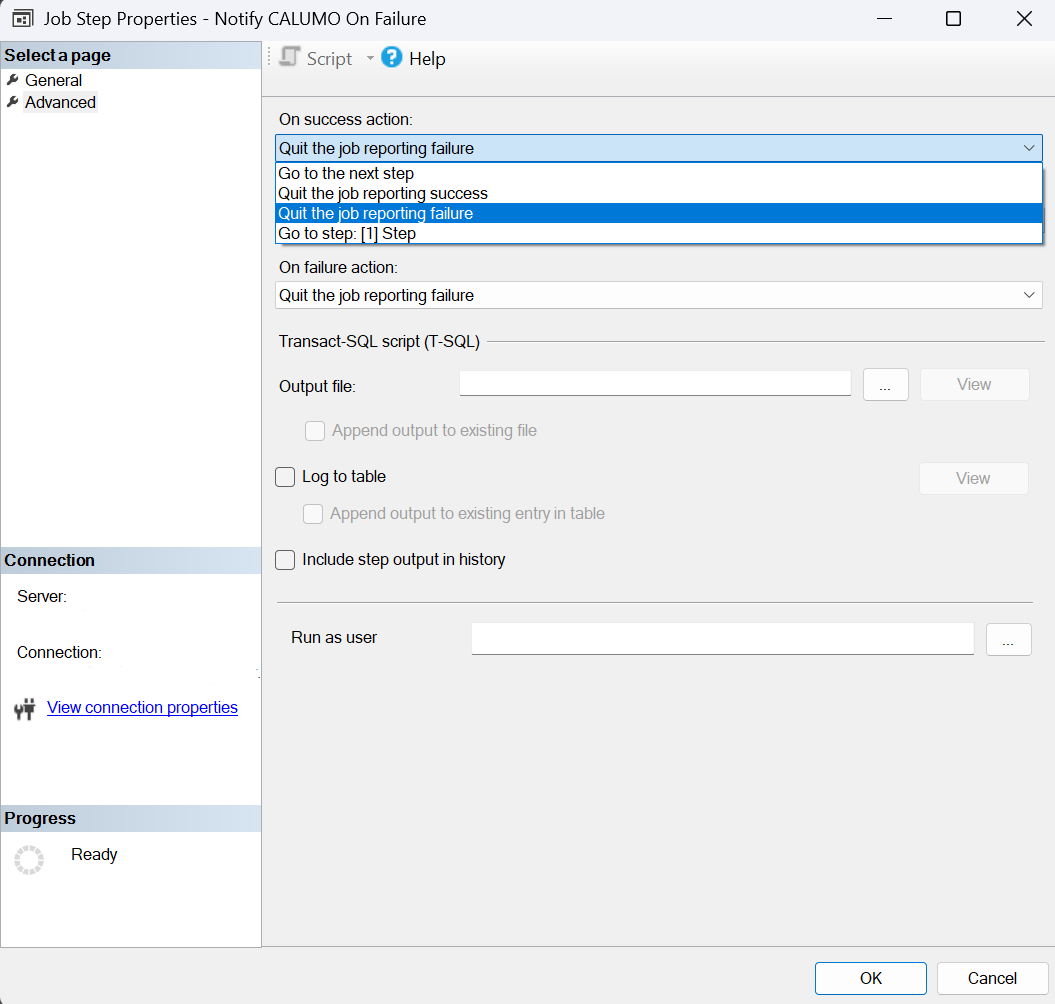
- Click the Advanced tab on the left side and set:
- On success action: Quit the job reporting failure.
- On failure action: Quit the job reporting failure.
-
Click OK to save the notification step.
-
Important: Ensure that the Notify CALUMO on Failure step is the last step in the job to avoid incorrect step information in failure emails. Use the Move step buttons to reorder if needed.

- For each other step in the job (excluding the notification step):
- Double-click the step to open its properties.
- Click the Advanced tab.
- Set On failure action to Go to step: Notify CALUMO on Failure.
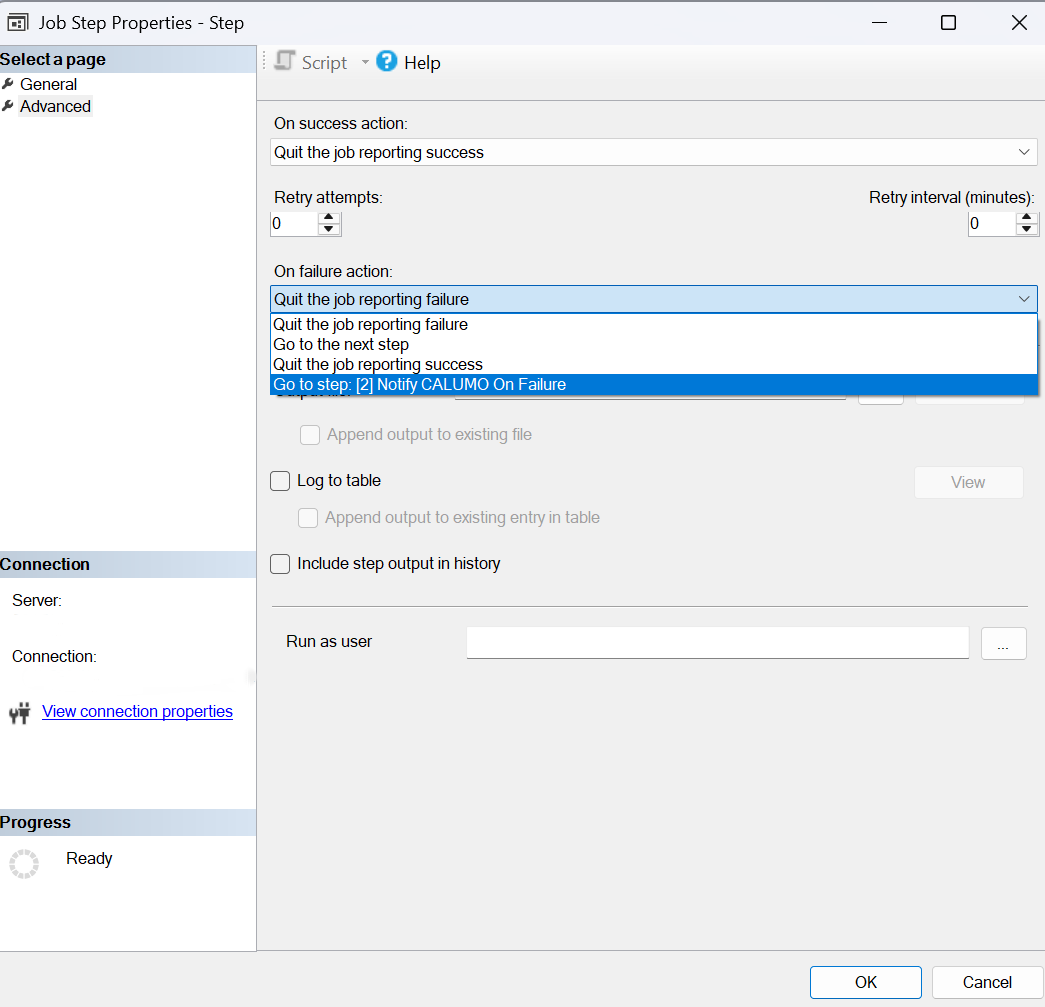
- On success action can be set to any value EXCEPT Go to step: Notify CALUMO on Failure.
- Important: The step immediately before the notify step must have On success action set to Quit the job reporting success.
SQL Script Alternative
To prevent manually adding the job step, use one of the below scripts to add it instead.
⚠️ Warning: These scripts modify SQL Server Agent job steps. Ensure you have reviewed the job configuration and understand the impact before running. Test on non-production jobs first if possible.
Option A - Add to Specific Jobs
This script adds the notification step to one or multiple jobs. Update the job names in the @jobNames table variable and run the script:
-- Define the jobs to configure (add or remove job names as needed)
DECLARE @jobNames TABLE (JobName NVARCHAR(128));
INSERT INTO @jobNames VALUES
    (N'Job 10'),
    (N'Job 7'),
    (N'Job 8');
    -- Add more jobs as needed by adding additional rows

DECLARE @jobName NVARCHAR(128);
DECLARE @jobId UNIQUEIDENTIFIER;
DECLARE @nextStepId INT;

-- Process each job
WHILE EXISTS (SELECT 1 FROM @jobNames)
BEGIN
    SELECT TOP 1 @jobName = JobName FROM @jobNames;

    -- Get the job ID
    SELECT @jobId = job_id FROM msdb.dbo.sysjobs WHERE name = @jobName;

    IF @jobId IS NOT NULL
    BEGIN
        SELECT @nextStepId = ISNULL(MAX(step_id), 0) + 1
        FROM msdb.dbo.sysjobsteps
        WHERE job_id = @jobId;

        -- Add the notification step as the last step
        EXEC msdb.dbo.sp_add_jobstep
            @job_id = @jobId,
            @step_name = N'Notify CALUMO on Failure',
            @step_id = @nextStepId,
            @subsystem = N'TSQL',
            @command = N'EXEC <appdb>.dbo.sp_NotifyJobFailure @JobIDHex = ''$(ESCAPE_NONE(JOBID))'', @JobName = ''$(ESCAPE_SQUOTE(JOBNAME))'';',
            @database_name = N'<appdb>',
            @on_success_action = 2,  -- Quit with failure
            @on_fail_action = 2;     -- Quit with failure

        -- Route all other step failures to the notification step
        UPDATE msdb.dbo.sysjobsteps
        SET on_fail_action = 4,
            on_fail_step_id = @nextStepId
        WHERE job_id = @jobId
            AND step_id <> @nextStepId;

        PRINT N'Successfully configured job: ' + @jobName;
    END
    ELSE
    BEGIN
        PRINT N'Job not found: ' + @jobName;
    END

    DELETE FROM @jobNames WHERE JobName = @jobName;
END
Important:
- Update the job names in the @jobNames table variable to match your jobs.
- The notification step will be added as the last step to avoid incorrect step information in emails.
- All other steps will have On failure action set to Go to step: Notify CALUMO on Failure.
- The notification step will have On success action = Quit with failure and On failure action = Quit with failure.
- The step immediately before the notify step must have On success action = Quit with success.
Option B - Add to ALL Jobs
This script adds the notification step to ALL SQL Server Agent jobs on the server. Use this only if you want to enable alerts for every job:
-- Add notification step to ALL jobs
DECLARE @jobId UNIQUEIDENTIFIER;
DECLARE @nextStepId INT;
DECLARE @jobName NVARCHAR(128);

-- Get all jobs
DECLARE job_cursor CURSOR FOR
SELECT job_id, name FROM msdb.dbo.sysjobs;

OPEN job_cursor;
FETCH NEXT FROM job_cursor INTO @jobId, @jobName;

WHILE @@FETCH_STATUS = 0
BEGIN
    SELECT @nextStepId = ISNULL(MAX(step_id), 0) + 1
    FROM msdb.dbo.sysjobsteps
    WHERE job_id = @jobId;

    -- Add the notification step as the last step
    EXEC msdb.dbo.sp_add_jobstep
        @job_id = @jobId,
        @step_name = N'Notify CALUMO on Failure',
        @step_id = @nextStepId,
        @subsystem = N'TSQL',
        @command = N'EXEC <appdb>.dbo.sp_NotifyJobFailure @JobIDHex = ''$(ESCAPE_NONE(JOBID))'', @JobName = ''$(ESCAPE_SQUOTE(JOBNAME))'';',
        @database_name = N'<appdb>',
        @on_success_action = 2,
        @on_fail_action = 2;

    -- Route all other step failures to the notification step
    UPDATE msdb.dbo.sysjobsteps
    SET on_fail_action = 4,
        on_fail_step_id = @nextStepId
    WHERE job_id = @jobId
        AND step_id <> @nextStepId;

    PRINT N'Successfully configured job: ' + @jobName;

    FETCH NEXT FROM job_cursor INTO @jobId, @jobName;
END

CLOSE job_cursor;
DEALLOCATE job_cursor;
Important: - This script configures ALL jobs on the server - use with caution. - The same rules apply as Option A regarding step configuration and ordering. - Review the jobs being configured before running this script.
Multi-Database Setup
If your server has multiple CALUMO databases that share the same SQL Server Agent jobs, add an EXEC statement for each database in the notification step:
EXEC <database1>.dbo.sp_NotifyJobFailure @JobIDHex = '$(ESCAPE_NONE(JOBID))', @JobName = '$(ESCAPE_SQUOTE(JOBNAME))';
EXEC <database2>.dbo.sp_NotifyJobFailure @JobIDHex = '$(ESCAPE_NONE(JOBID))', @JobName = '$(ESCAPE_SQUOTE(JOBNAME))';
EXEC <database3>.dbo.sp_NotifyJobFailure @JobIDHex = '$(ESCAPE_NONE(JOBID))', @JobName = '$(ESCAPE_SQUOTE(JOBNAME))';
@database_name property of the job step is set to Master.
4. Verify Webhook Configuration
Run this query on the CALUMO application database (e.g. calumo_dev) to verify the webhook secret is configured:
SELECT SettingValue FROM Setting
WHERE SettingKey = 'WebhookSecret' AND SettingType = 'Application';
If no value is returned, the webhook secret is not configured and job failure notifications will NOT WORK.
5. Verify SQL Agent User Permissions
The SQL Agent job owner (e.g. calumouser) must be a member of the sysadmin server role to execute OLE Automation procedures.
Manual Verification via SQL Server Management Studio
-
In Object Explorer, right-click the server and select Security > Logins.
-
Find and right-click your SQL Agent user (e.g.
calumouser) and select Properties. -
Go to Server Roles and verify that sysadmin is checked.
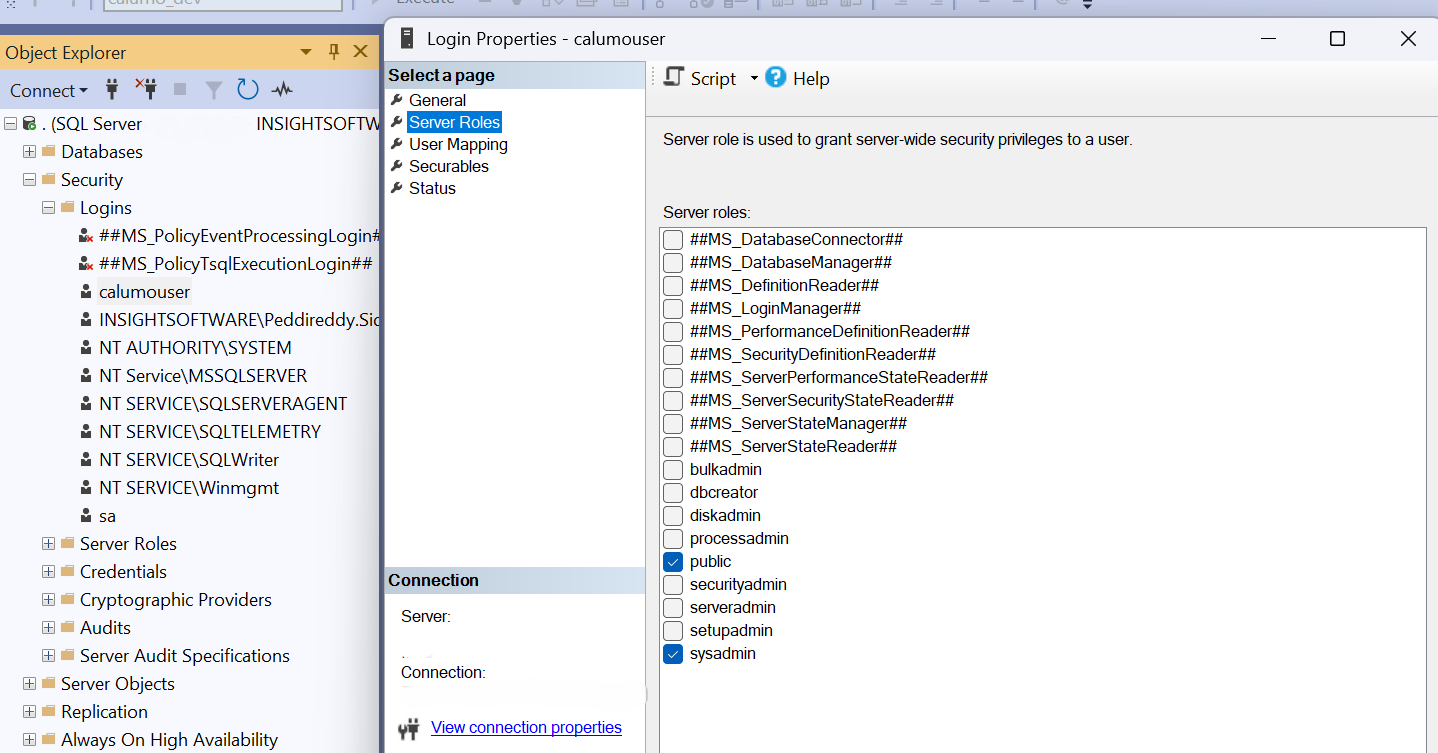
If not checked, click the checkbox to enable it.
SQL Script Alternative
Run this query to verify the user has sysadmin role:
SELECT * FROM sys.server_role_members
WHERE role_principal_id = (SELECT principal_id FROM sys.server_principals WHERE name = 'sysadmin')
  AND member_principal_id = (SELECT principal_id FROM sys.server_principals WHERE name = 'your_job_owner_name');
If no rows are returned, add the user to sysadmin:
ALTER SERVER ROLE sysadmin ADD MEMBER [your_job_owner_name];