Certificate Installation
This guide walks you through installing the CALUMO Office Client and configuring the required certificate to ensure the Excel add-in is trusted by Microsoft Office.
Overview
What is Certificate Installation?
When using the CALUMO Excel add-in, Microsoft Office requires that add-ins be signed by a trusted publisher. Installing the CALUMO certificate ensures the add-in is recognized and loaded without security warnings.
Why Install the Certificate?
Without a trusted certificate, Excel may block the CALUMO add-in from loading. Installing the certificate:
- Ensures the CALUMO add-in loads correctly in Microsoft Excel
- Prevents security warnings when opening Excel with CALUMO
- Establishes trust between the CALUMO add-in and Microsoft Office
- Provides a seamless user experience when connecting to CALUMO
Installation Steps
Step 1 – Download the Client
Visit the CALUMO application URL and download the Office client .exe file.
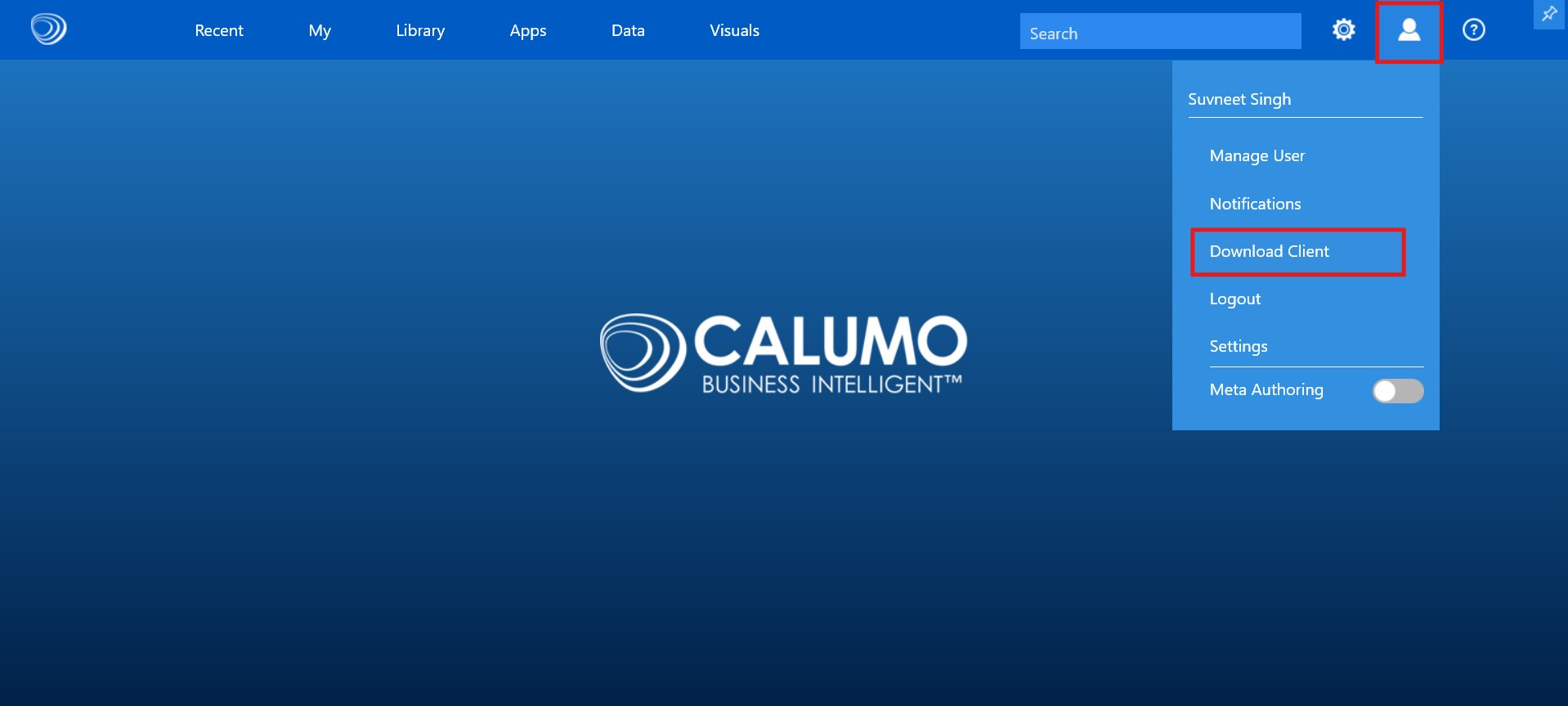
Step 2 – Install the Client
- From your Downloads folder, double-click the installer file to launch it.
- When prompted, enter the required URL.
- Proceed through the setup wizard by clicking Next → Next → Install → Next → Finish.
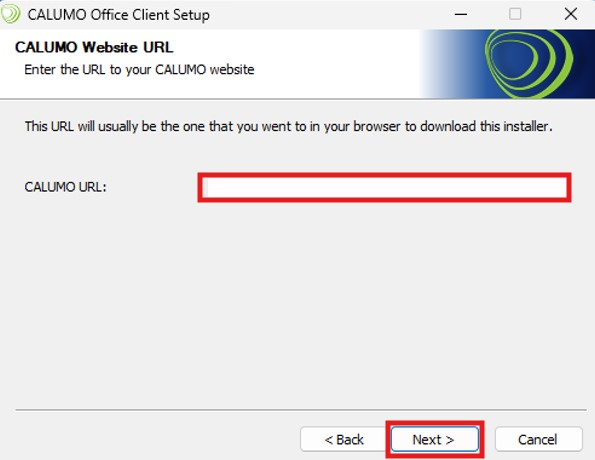
Step 3 – Initial Excel Setup
Once installation is complete, open Microsoft Excel and click OK on the prompt that appears.
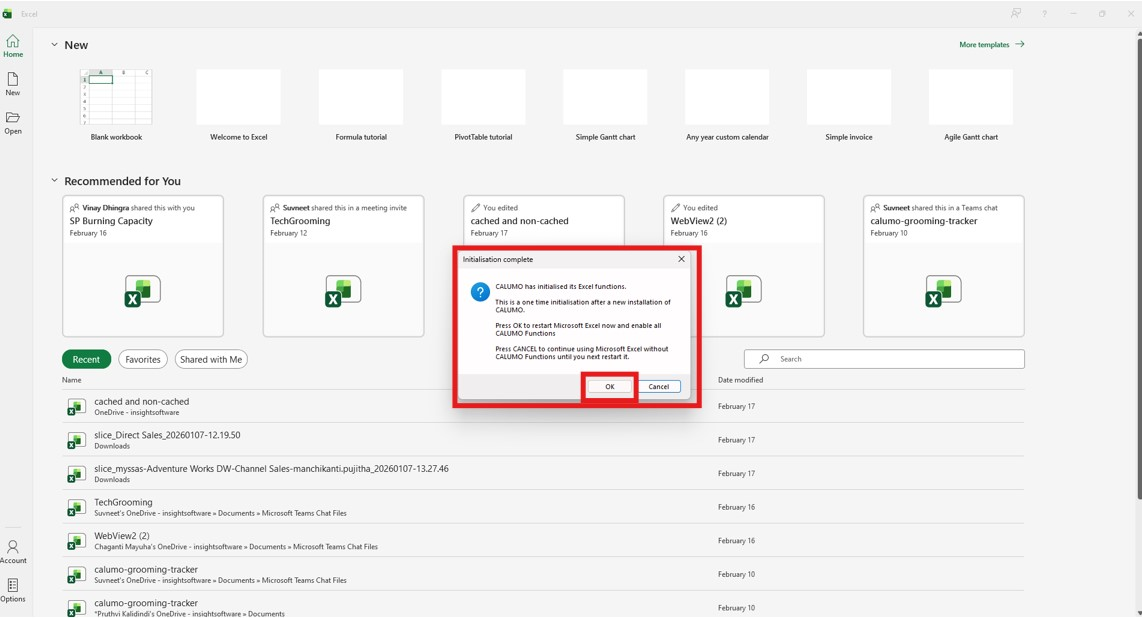
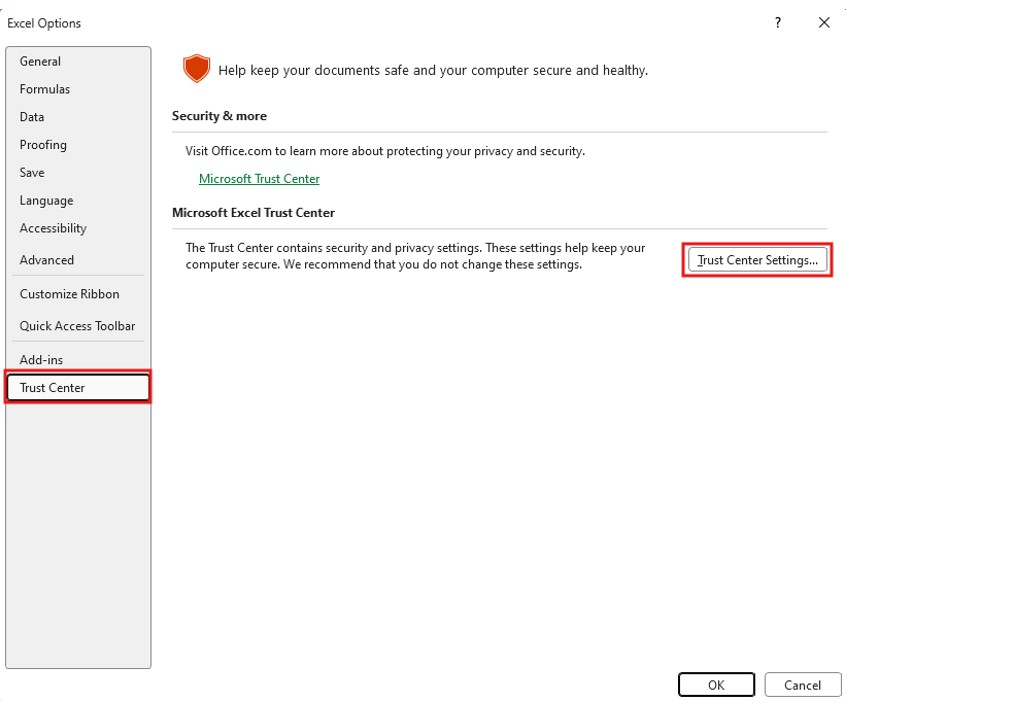
Step 4 – Configure Trust Center Settings
- Navigate to File → Options
- Select Trust Center
- Click Trust Center Settings
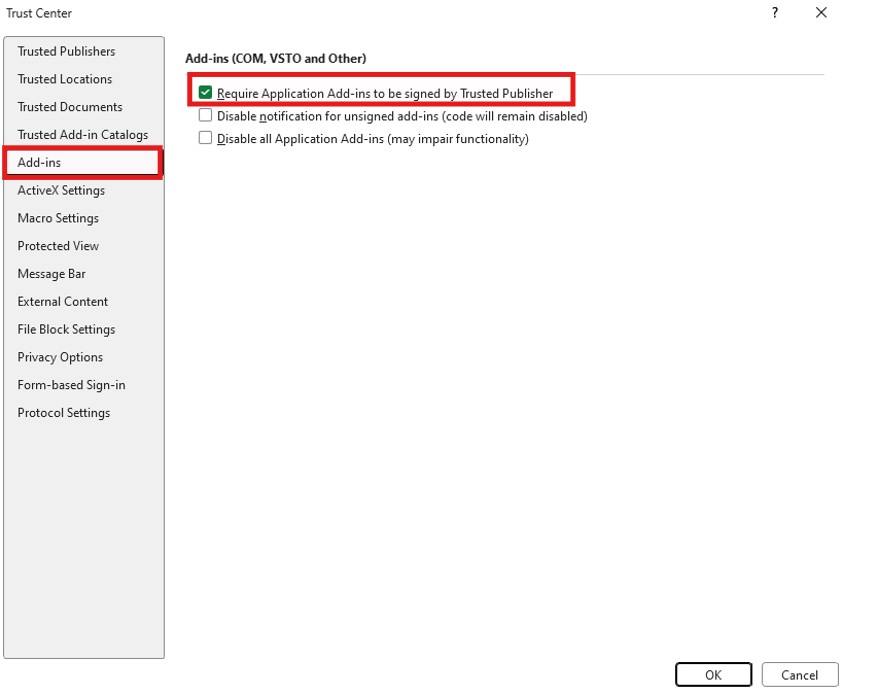
Step 5 – Enable Add-in Signing Requirement
- Go to the Add-ins section
- Check the option labeled “Require application Add-ins to be signed by a trusted publisher”
- Click OK to save the setting
Step 6 – Download and Open the Certificate
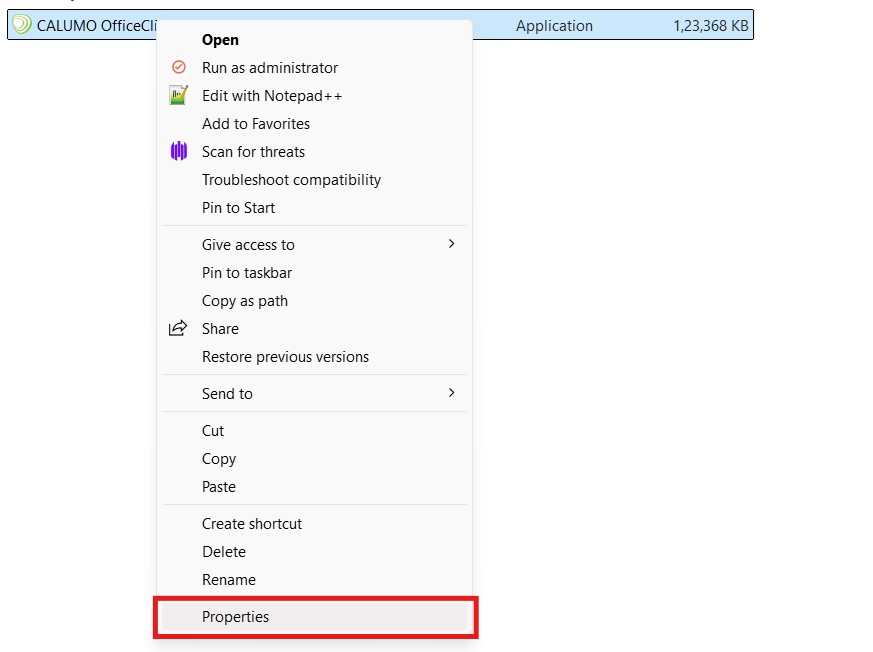
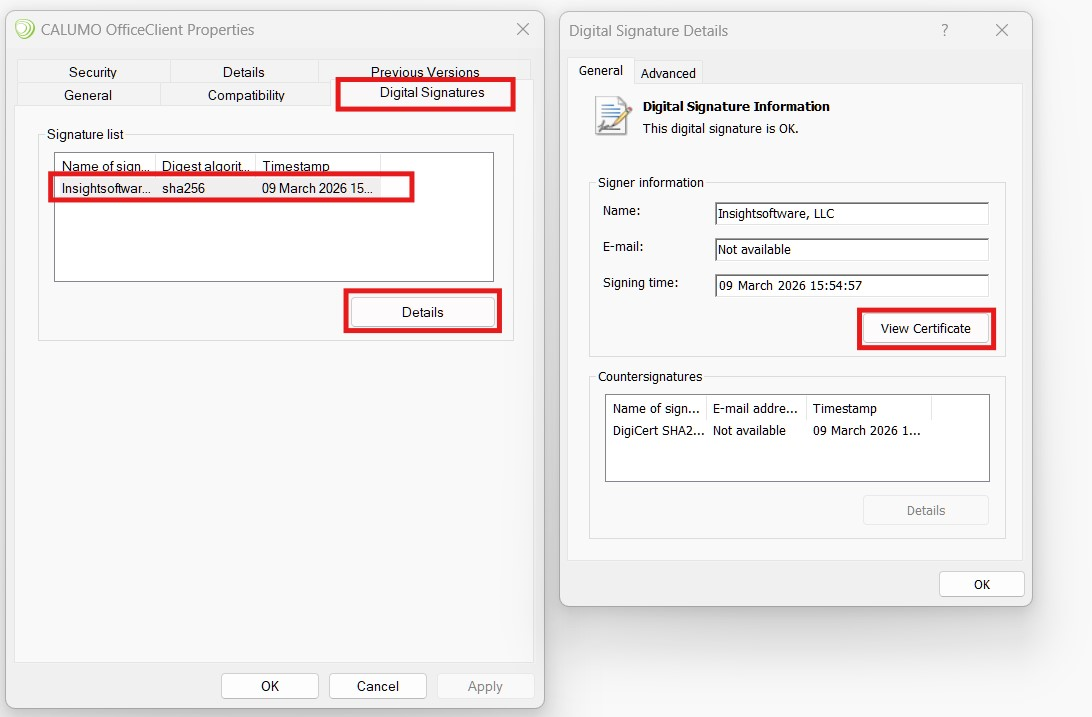
- Right click on OfficeClient.exe > Properties > Digital Signatures >
- Click on Certificate
- Click on Details button
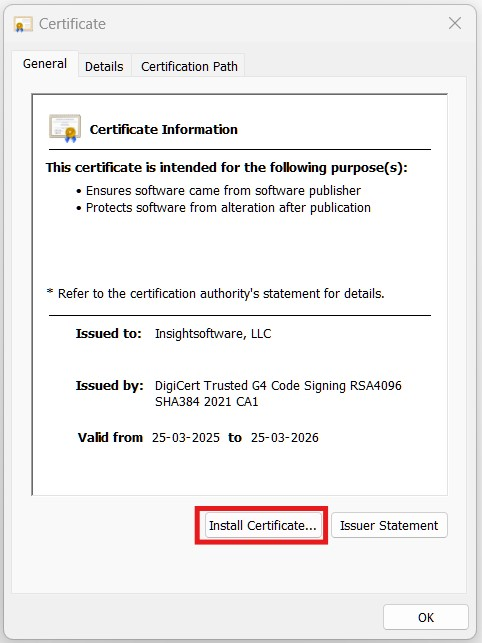
- Click View Certificate
- Install Certificate… button
Step 7 – Choose Installation Location
- Select Local Machine as the store location.
- Click Next.
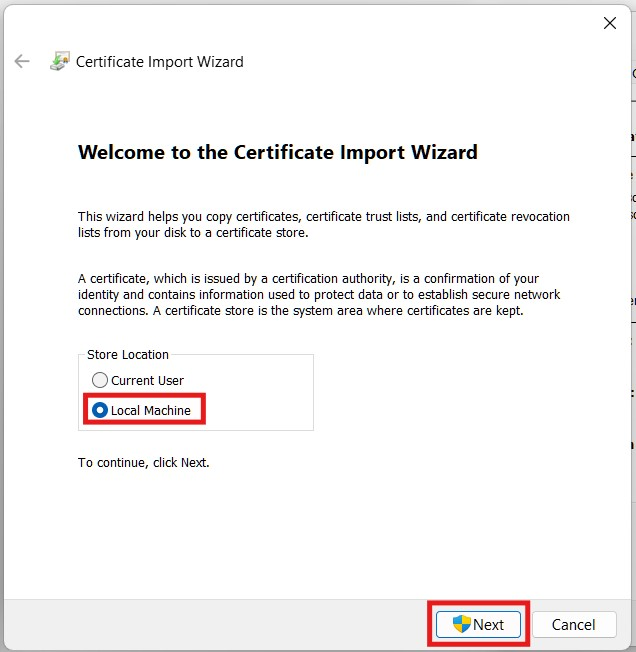
Step 8 – Select Certificate Store
- Choose “Place all certificates in the following store”
- Click Browse.
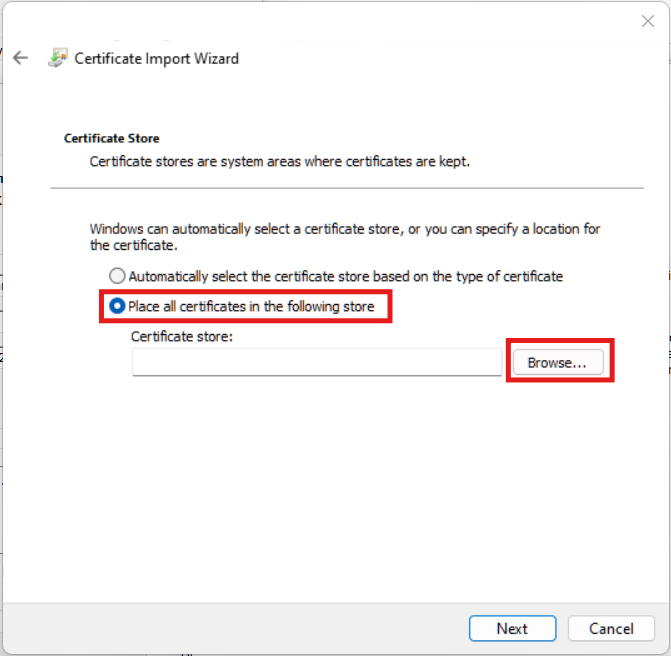
Step 9 – Select Trusted Publishers
- From the list, select Trusted Publishers.
- Click OK.
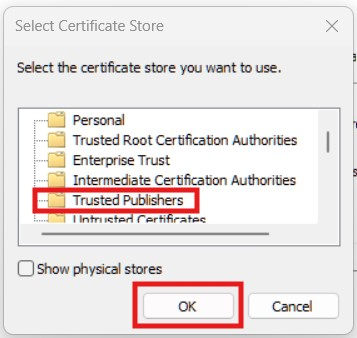
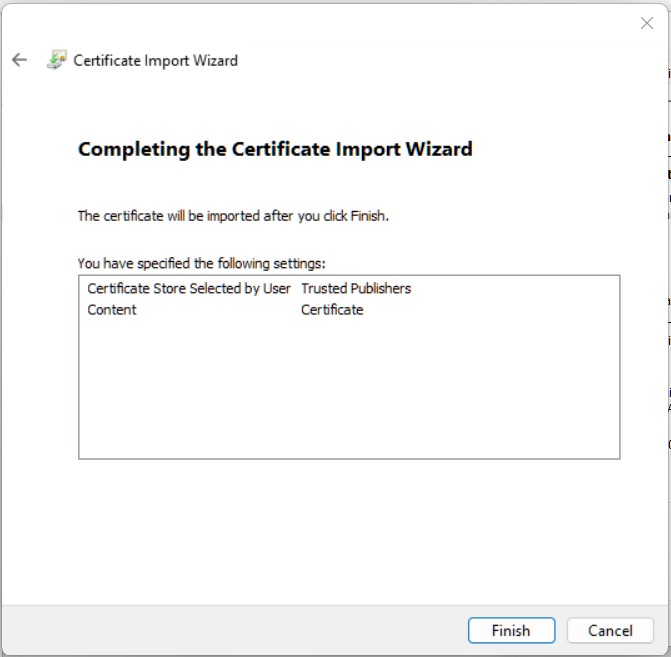
Step 10 – Complete the Installation
- Click Next, then Finish to finalize the process.
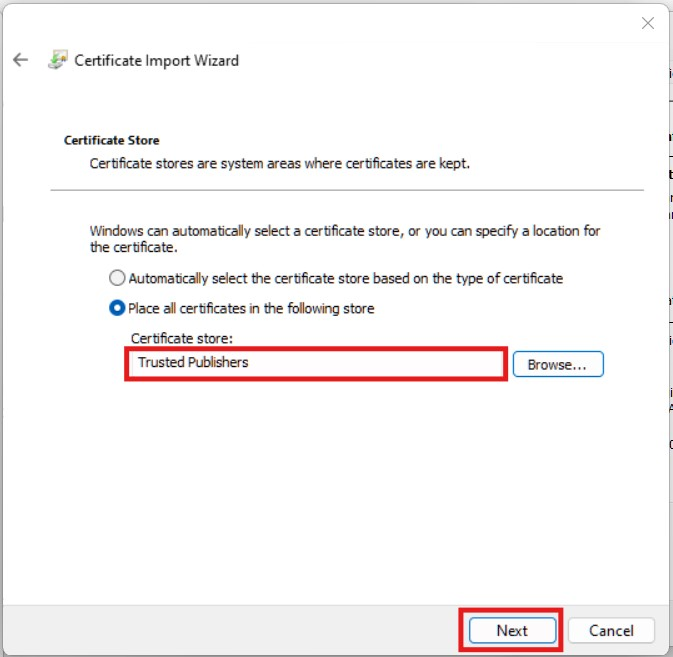
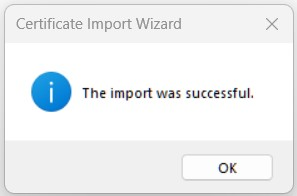
- A confirmation pop-up will appear once the installation is successfully completed.
- Click OK.
Step 11 – Connect in Excel
Reopen Microsoft Excel and proceed to connect to the CALUMO application.